Current User Guide // ONO-SYS-64
OPERATOR'S
FIELD MANUAL
ONO Tape Deck is a private digital cassette system. You create an account, receive a temporary loaner tape, record or upload audio in the Workshop, seal the tape, play it from the Vault, and move permanent assets through controlled transfer links.
ACCOUNT
STARTING AS AN OPERATORCreate an account with email verification or a supported sign-in method. After your account is active, ONO assigns an operator profile and grants one [ LOANER TAPE ] when available. The loaner lets new users try the full recording flow before owning a permanent tape.

VAULT
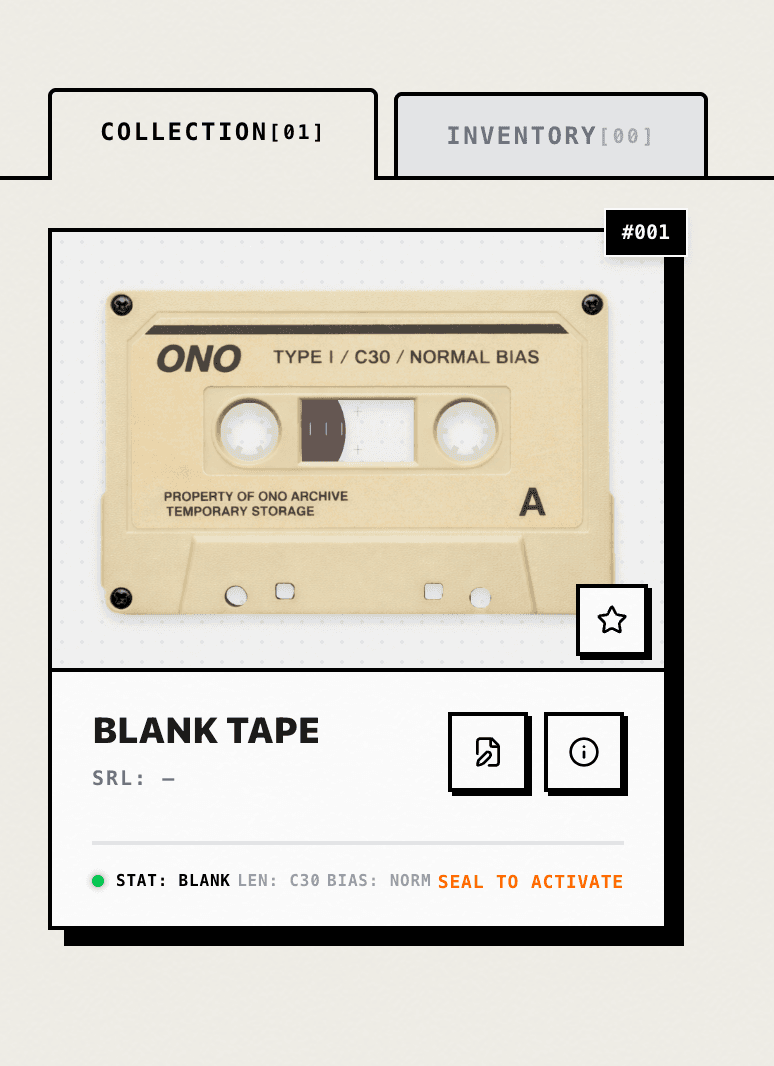
WHERE TAPES LIVEThe Vault is your main inventory screen. [ COLLECTION ] contains opened, draft, sealed, archived, and playable tapes. [ INVENTORY ] contains unopened packs that still need to be opened before use.
WORKSHOP
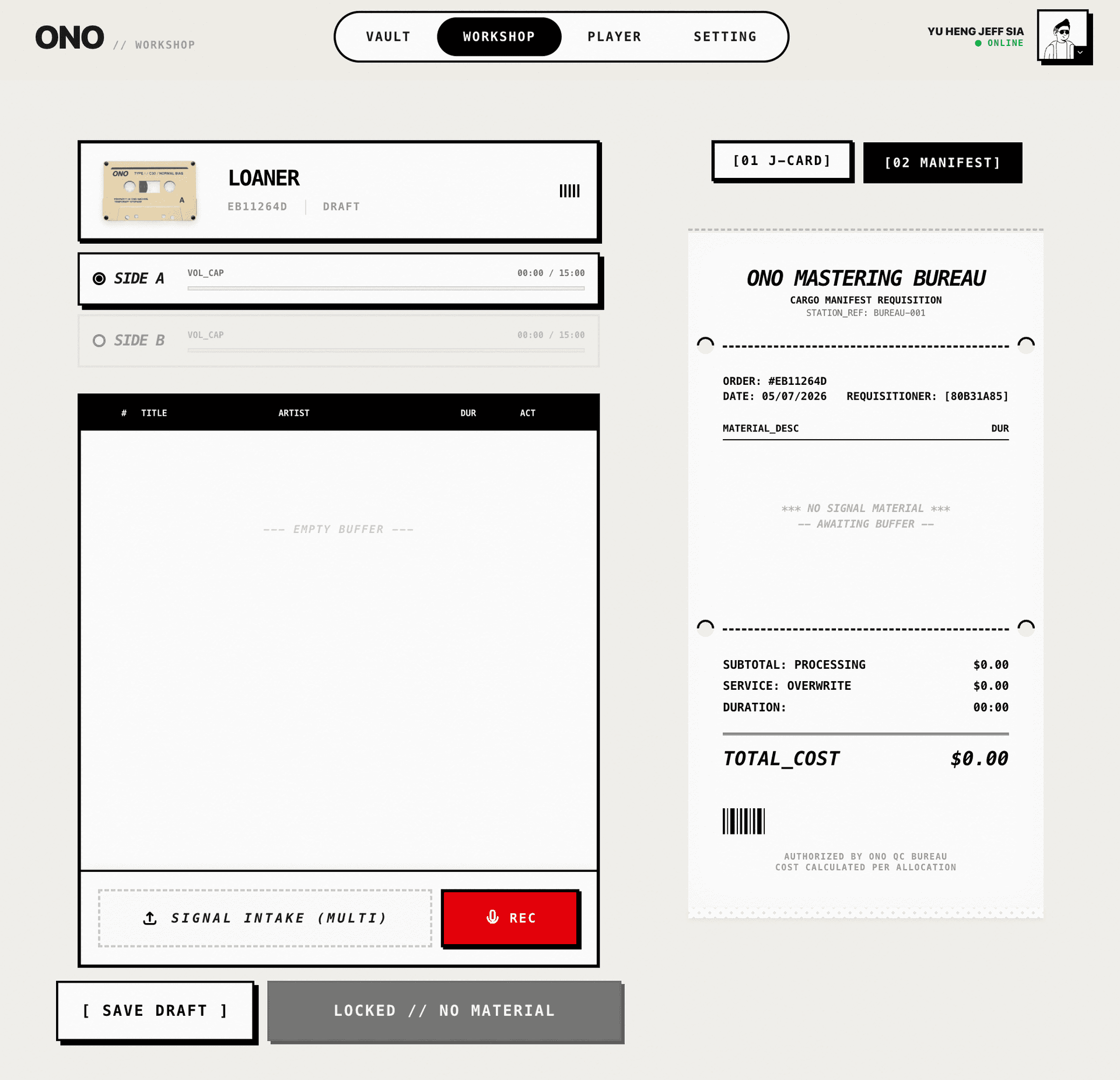
RECORD OR UPLOAD AUDIOThe Workshop is where blank or draft tapes become recordings. You can upload audio files, including MP3 files, or use the built-in recorder to capture a new signal from your microphone. Tracks are assigned to Side A or Side B and must fit within the tape capacity.
SEALING
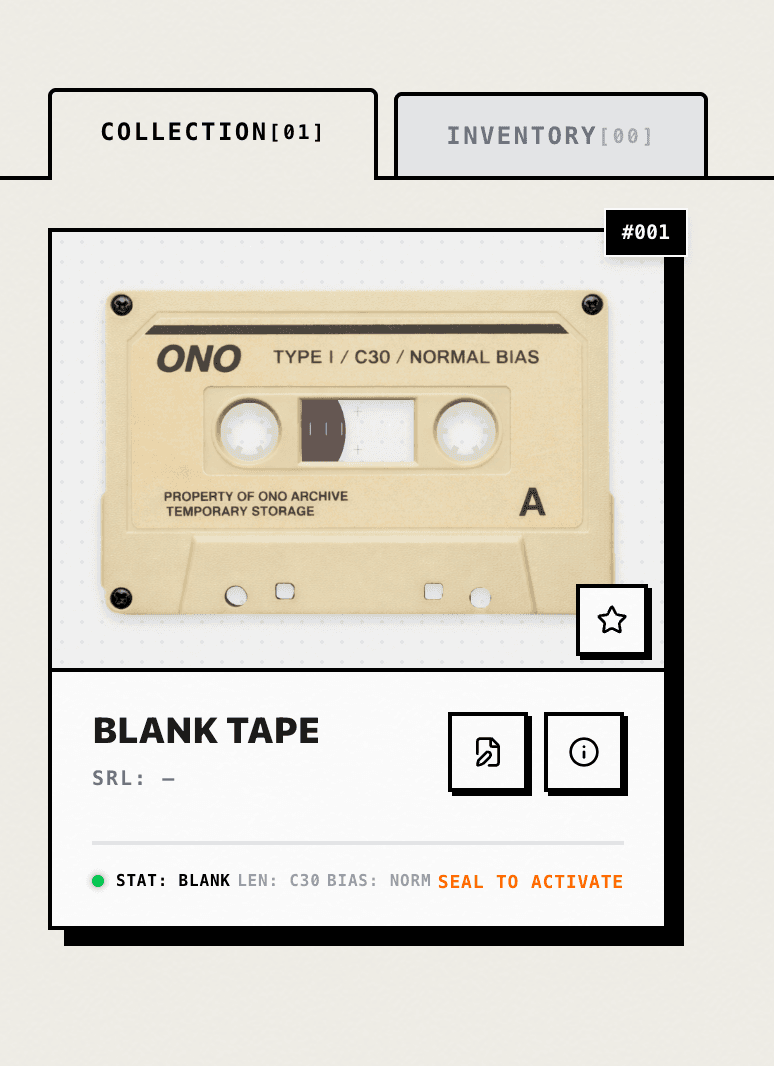
LOCKING A RECORDINGSealing turns a draft recording into a finished tape. After sealing, the tape becomes playable in the Player. If you are sealing a loaner tape, ONO starts a 30-day expiry clock. Use that window to dub the loaner contents into a permanent tape if you want to keep them.
CHECK YOUR TRACK ORDER AND TAPE TITLE BEFORE SEALING. SEALED TAPES ARE TREATED AS FINISHED ASSETS.
PLAYER
LISTENING TO SEALED TAPESThe Player is the listening surface for sealed tapes. Open a tape from the Vault or tape inspector and choose the player action. Loaner tapes can be played while they are valid. Expired loaners may be archived and blocked from playback.
Show the Player with the cassette view and transport controls visible.
{Screenshot needed:(description:Show the Player with the cassette view and transport controls visible.)}LOANER
TEMPORARY TAPE RULESA loaner tape is temporary. It is meant to help new operators test the system. Loaner tapes are non-transferable. After a loaner is sealed, it receives a 30-day expiry window. To preserve the recording, dub it into a permanent blank or draft tape.
Show a loaner tape page with the countdown and the Dub to Permanent Tape action.
{Screenshot needed:(description:Show a loaner tape page with the countdown and the Dub to Permanent Tape action.)}DUBBING
LOANER TO PERMANENTDubbing copies the signal from a sealed or archived loaner into a permanent blank or draft tape that you own. This is the recommended path for keeping a loaner recording. The loaner remains protected until you complete the final seal flow in the Workshop.
Show the dub target selection modal listing permanent blank or draft tapes.
{Screenshot needed:(description:Show the dub target selection modal listing permanent blank or draft tapes.)}TRANSFER
MOVING PERMANENT ASSETSPermanent tapes can be transferred by generating a claim link. Loaner tapes cannot be transferred. Only eligible tape states can generate a transfer token, and the asset may be temporarily locked while the transfer token is active.
Show the transfer waybill or generated transfer token panel with the copy button.
{Screenshot needed:(description:Show the transfer waybill or generated transfer token panel with the copy button.)}PROFILE
OPERATOR SETTINGSThe Profile page stores your operator name, avatar, account timestamps, activity tools, rewrite credits, and security actions. Your avatar is shared between the top navigation and profile page, so changing it updates both.
Show the Profile page with avatar, Edit Data button, rewrite credits, and security credentials.
{Screenshot needed:(description:Show the Profile page with avatar, Edit Data button, rewrite credits, and security credentials.)}REWRITE
DEMAGNETIZATIONRewrite credits are used for destructive reset operations on eligible sealed assets. A rewrite clears the recording and returns the physical shell to a reusable state when the system allows it.
REWRITE AND DEMAGNETIZATION ACTIONS ERASE RECORDED DATA. DO NOT USE THIS FLOW UNLESS YOU INTEND TO CLEAR THE TAPE.
Show the rewrite or demagnetization confirmation on a sealed tape inspector with the danger warning.
{Screenshot needed:(description:Show the rewrite or demagnetization confirmation on a sealed tape inspector with the danger warning.)}